

BOARDROOM Pro
User Guide — Version 1.0
Welcome to BOARDROOM
BOARDROOM is a storyboard layout tool for Adobe Photoshop, designed to help artists quickly create clean, consistent storyboard pages without spending time manually building grids, frames and page layouts.
Whether you're boarding for animation, television commercials, film or presentations, BOARDROOM helps you get straight to drawing.
Designed to simplify storyboard production and help artists spend more time creating.
Minimum Photoshop version: 23.3 (Photoshop 2022)
Latest version tested: 27.11 (Photoshop 2026)
Operating systems: Windows and macOS
CONTACT FOR SUPPORT - support@studiosqueak.com
CREATE PANELS
ANIMATE
DRAW INTO PANELS
Getting started
1. Follow directions from Adode
*PURCHASE LINK
Open Adobe Photoshop and launch BOARDROOM from PLUGINS DROPDOWN
2. Creating a Storyboard Page
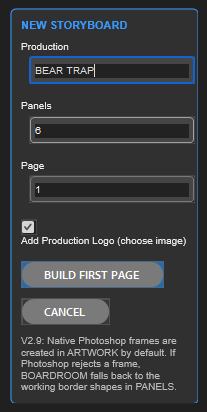
Select the option to create a new storyboard page.
BOARDROOM will ask you to choose your preferred layout settings, including:
Aspect Ratio: Choose the framing ratio appropriate for your production, such as 16:9 or 2.39:1.
Number of Panels: Select how many storyboard frames you'd like on each page.
Studio Logo: Choose whether to include a logo on your storyboard pages.
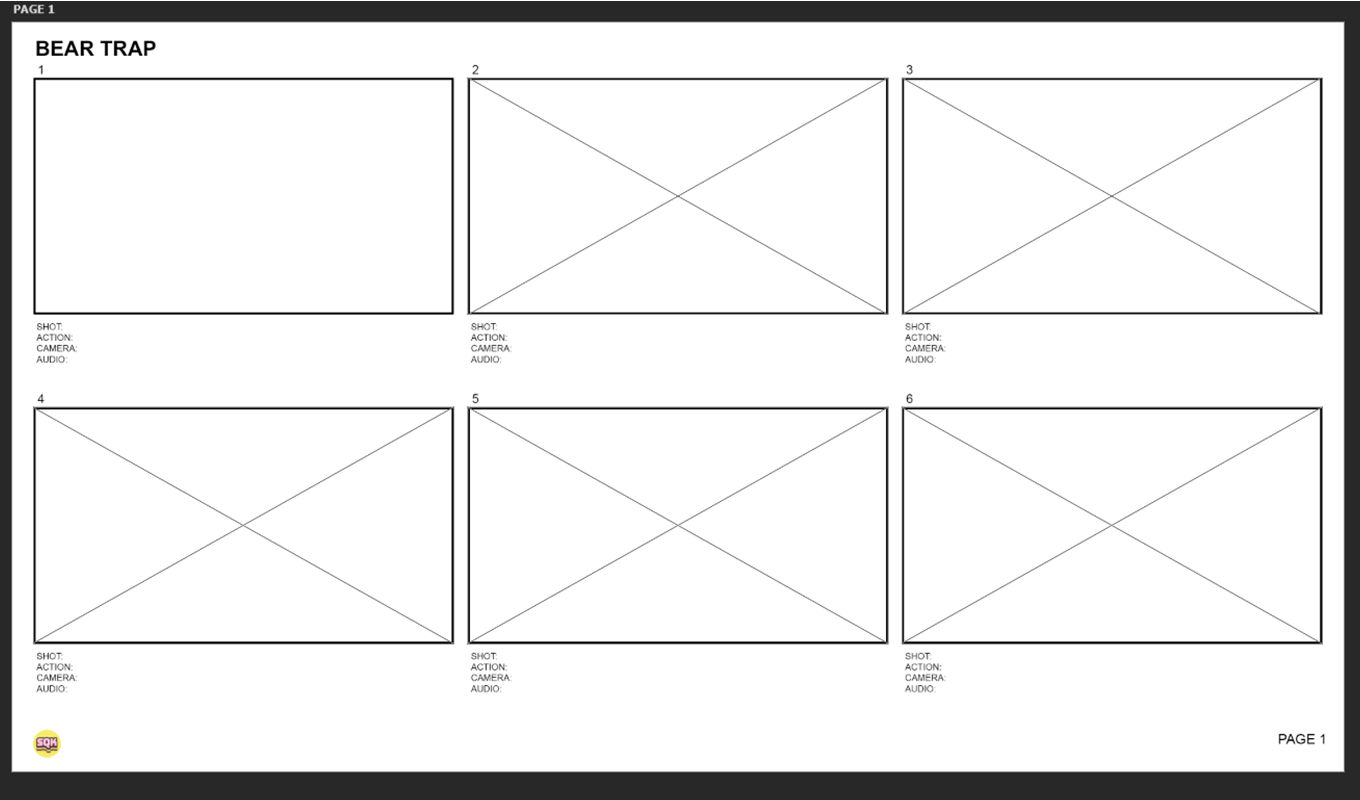
Once you've selected your settings, confirm to generate your storyboard page.
BOARDROOM creates a consistent layout, ready for your artwork.
3. Choosing Your Aspect Ratio
Your storyboard panels should reflect the final screen format of your production.
16:9 — Widescreen
Ideal for television, online video, animation and most commercial productions.
2.39:1 — Cinematic Widescreen
Ideal for feature films, cinematic advertising and projects requiring a wider composition.
Choose the format that matches your production before beginning your storyboard.
4. Choosing the Number of Panels
BOARDROOM allows you to determine how many panels appear on each page.
A six-panel layout is a useful starting point for most storyboard projects, providing a balance between drawing space and the number of shots visible on a page.
Use fewer panels when you need larger drawings or more room for visual detail.
5. Adding Your Studio Logo
BOARDROOM supports including a studio or production logo as part of your page layout.
This is useful when preparing storyboards for client presentations, production teams or external review.
If you don't need branding, choose the option to create your pages without a logo.
6. Drawing Your Storyboards
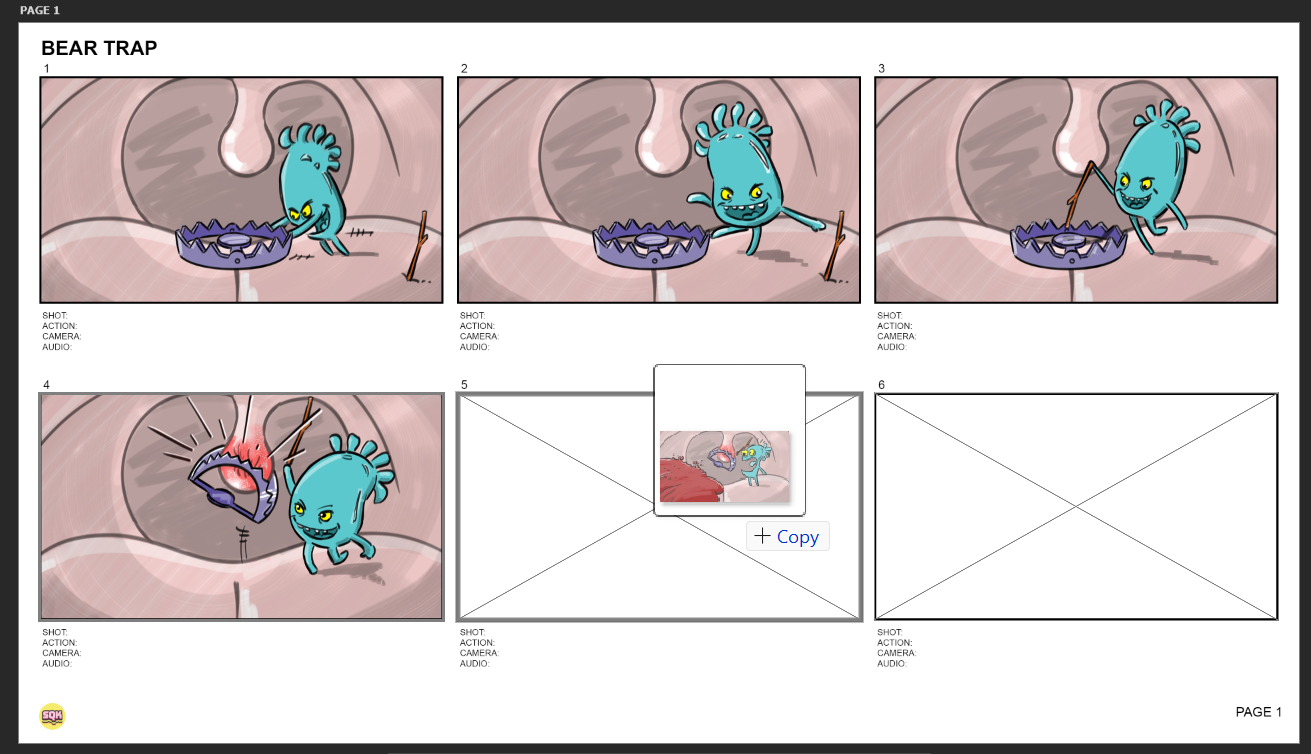
Once your page has been generated, you can begin drawing or draging exisiting images into the panels
using Photoshop's normal tools.
For the best results:
Keep your artwork organised in clearly named layers.
Use the storyboard frames as guides for composition.
Maintain consistent shot framing throughout the sequence.
Save your working Photoshop document regularly.
7. Preparing Your Storyboards for Review
When your storyboards are ready to share, use Photoshop's export options to create a suitable review file.
PDF is useful for sharing storyboard pages with clients and production teams, while individual images can be useful for presentations and editing workflows.
8. Tips for Working Efficiently
Establish your format first. Confirm the project's aspect ratio before creating pages.
Keep layouts consistent. Use the same panel count and layout throughout a sequence wherever possible.
Work in layers. Separate your drawing, annotations and revisions to make changes easier.
Save your templates. Retain a clean copy of frequently used storyboard layouts for future projects.
9. Troubleshooting
BOARDROOM doesn't appear in Photoshop
Check that BOARDROOM has been installed correctly and that Photoshop has been restarted after installation.
My panels are the wrong shape
Check the selected aspect ratio and create a new page using the correct production format.
My logo isn't appearing
Check that the logo option was enabled and that the source logo is available.
My page layout needs changing
Create a new storyboard page with the revised layout settings.



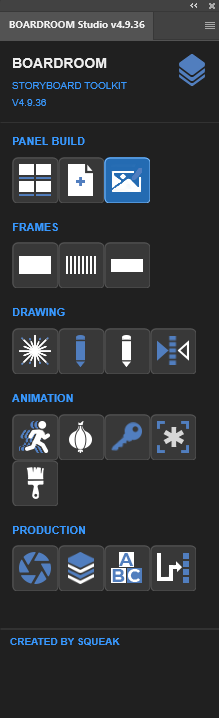
The toolbar is organised into six sections.
1. PANEL BUILD
Create Panels
Creates a new storyboard page with widescreen or 16:9 panels.
Use this to begin a new storyboard production. The setup window allows you to enter the production name, number of panels, starting page number and logo preference.
Create Next Page
Creates the next storyboard page, continuing the sequence and panel numbering.
Useful when expanding an existing storyboard without rebuilding the page layout manually.
Remove Frames
Removes the storyboard frame treatment from artwork layers.
Useful to draw directly into the layer provided.
2. FRAMES
16:9 Frame
Creates a widescreen 16:9 framing guide.
Useful for composing shots intended for television, online video and standard widescreen productions.
16:9 Bleed
Creates a widescreen framing guide with additional bleed area.
This gives artists extra drawing space beyond the intended picture boundary, particularly useful when planning camera moves, pans or reframing.
2.39:1 Frame
Creates a cinematic widescreen framing guide with a 2.39:1 aspect ratio.
Useful for film, cinematic advertising and productions requiring a wider composition.
3. DRAWING
Perspective
Creates a perspective guide on a separate layer.
Use it to establish perspective and spatial relationships when drawing environments, interiors and complex compositions.
Blue Pen
Selects the blue drawing pencil setup.
Ideal for rough sketches, construction lines and early storyboard development.
Black Pen
Selects the black drawing pencil setup.
Useful for refining drawings, creating clean lines and adding final details.
Flip Canvas
Flips the canvas view to help check proportions, composition and drawing accuracy.
Viewing artwork in reverse is a useful way to spot issues that may not be immediately obvious.
4. animation
4. ANIMATION25 FPS
Create a new animation timeline at prefered frames-per-second.
Useful when preparing storyboard artwork for timing and animation work.
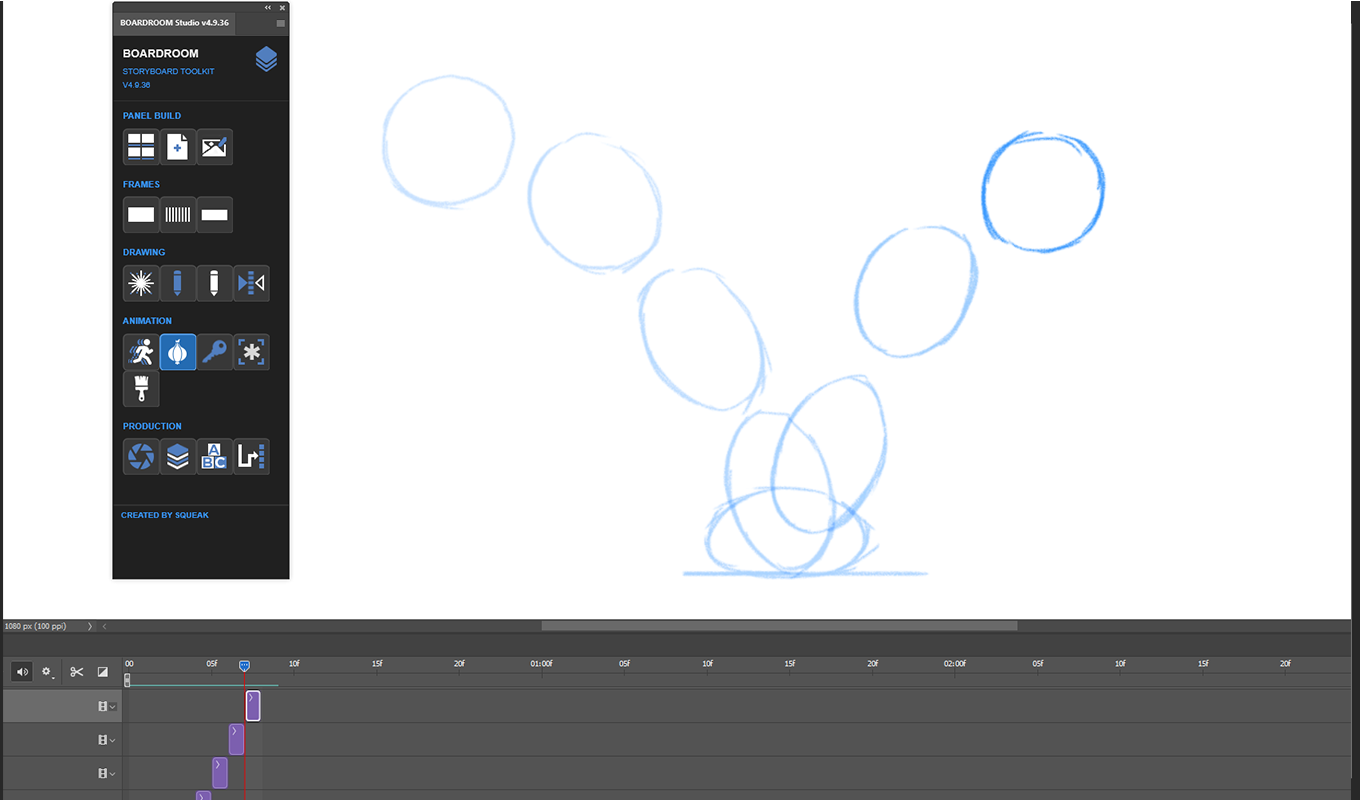
Onion Skin
Provides access to onion-skin functionality, allowing artists to reference neighbouring drawings when developing animation.
New Key Frame
Creates a new key drawing for animation work.
New Blank Frame
Creates a blank drawing frame, ready for new artwork.
Paint Layer
Provides a separate painting layer for colour or other artwork treatments.
Useful for keeping painted artwork separate from the original drawing.
5. PRODUCTION
Snapshot
Provides access to Photoshop's snapshot functionality.
Layer Comps
Provides access to Photoshop's Layer Comps functionality.
Useful for managing and comparing alternative artwork arrangements, compositions or presentation states.
Spell Check
Provides access to spell-checking tools.
Useful for reviewing written material such as dialogue, descriptions and storyboard notes.
Export HD
Provides an HD export option for preparing artwork for review or production.
Useful when sharing storyboard artwork with editors, directors, clients and production teams or prepping for animatics
BOARDROOM Pro — Squeak
Less time building boards. More time telling stories.